



Play Sprunki (SMILE AU) (1) Game
Sprunki Popular Characters
All 20 Characters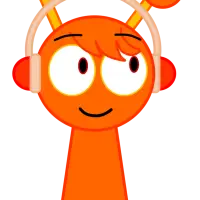
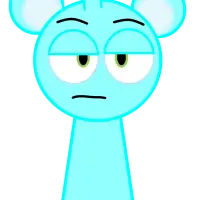
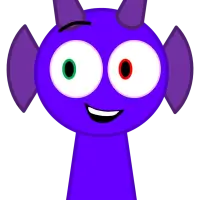
Sprunki Popular Character Ranking
Oren - Beat Character
Sky - Effect Character
Durple - Melody Character
Wenda - Vocal Character
Tunner - Melody Character
Trending Games




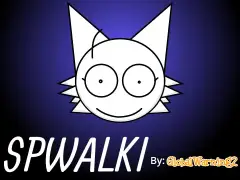
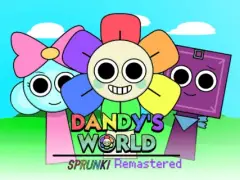
Sprunki (SMILE AU) (1)
Inside Sprunki (SMILE AU) (1)
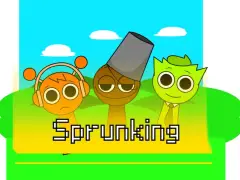
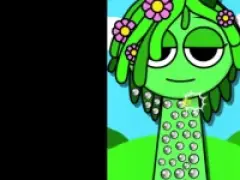
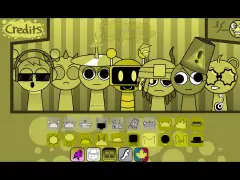
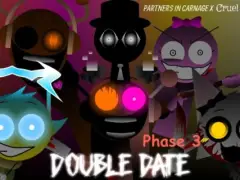
Smile AU 1 uses large dark circular eyes on headphones, cyan bear, flower hair, brown hat and pink rabbit against bright hills. A small brown-haired figure sits above the red performer at the right. Several lower selection spaces appear blank between symbols.
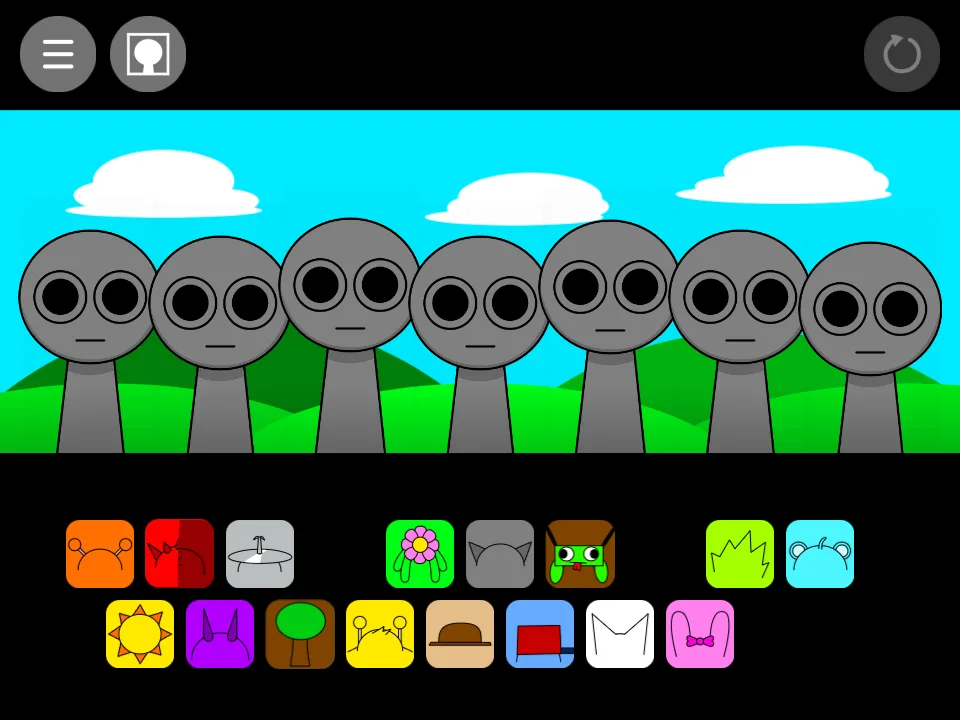
The player’s title is “Sprunki (SMILE AU) (1)”. Use that title together with the screenshots when returning to this edition, particularly if you are comparing another project with a similar name.
Start with this two-part mix
To reproduce the first pair tested in Sprunki (SMILE AU) (1), drag upper-row icon 1 onto the first performer from the left. Next, place upper-row icon 10 on the second performer. Both drops activated a separate part.
Build the seven-part arrangement
Continue the Sprunki (SMILE AU) (1) arrangement with upper-row icon 5 on performer 3, lower-row icon 5 on performer 4, lower-row icon 8 on performer 5, upper-row icon 2 on performer 6, and upper-row icon 3 on performer 7. Add them in that order to reach seven active parts. This fills all 7 positions on the stage.
| Add in order | Sound choice | Performer position |
|---|---|---|
| 1 | upper-row icon 1 | first from the left |
| 2 | upper-row icon 10 | second from the left |
| 3 | upper-row icon 5 | third from the left |
| 4 | lower-row icon 5 | 4th from the left |
| 5 | lower-row icon 8 | 5th from the left |
| 6 | upper-row icon 2 | 6th from the left |
| 7 | upper-row icon 3 | 7th from the left |
Placing sounds and starting again
The Sprunki (SMILE AU) (1) recipe uses a separate stage position for each sound. Release the dragged icon over the intended performer, then check that the character changes before moving to the next row-and-column choice.
A reset control is visible at the upper-right side of the game. Use the game’s own control when you want a fresh arrangement. The website’s Fullscreen button changes the viewing area and is useful when the 10 / 10-choice rows are difficult to distinguish on a small screen.